Every plan comes with your own company AI, from day one. See what it does

The morning roll-call, already done

Your managers approve the week instead of rebuilding it. Every clock-in lands with a time, a place and the rule it was judged against.

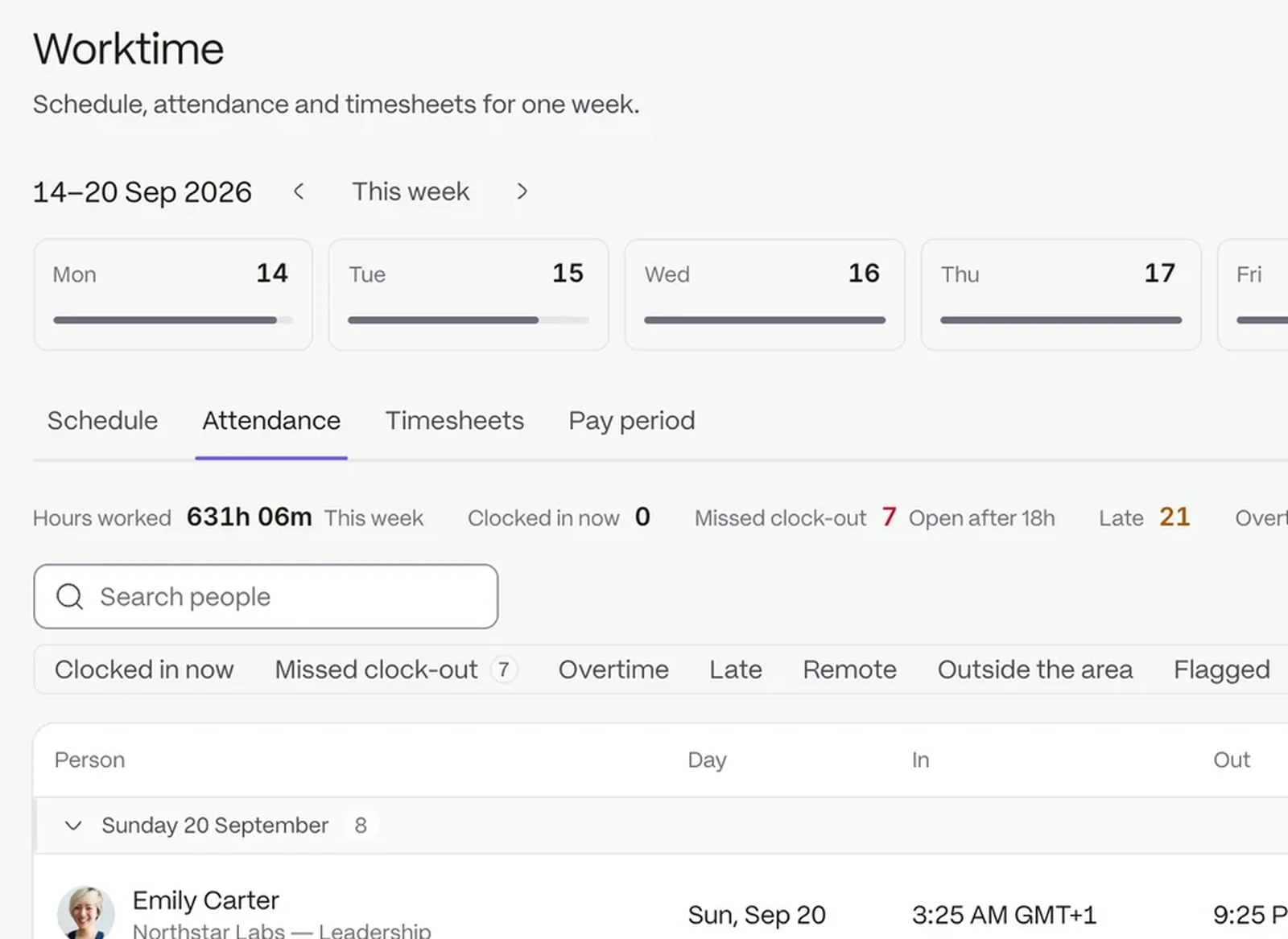
The attendance board: hours worked, late counts and each person’s clock records for the week, with exceptions flagged

Clock in. Check the week. Approve.

  1. 01

    People clock in

    Each clock-in is checked against the location it was taken from and the rule that applies to that person.

  2. 02

    The week builds itself

    Timesheets are generated from the clock-ins already on file, so nobody retypes hours on a Friday.

  3. 03

    Managers approve

    Review the days that were flagged, correct what needs it, and approve the rest.

Know where and how every day started

A clock-in lands as one of six statuses, decided at the moment it happens: Present, Late, Remote, WFH, Outside Geofence or Absent.

  • A geofence for every location, 200 metres by default
  • Weekday, weekend, work-from-home, exempt and override rules
  • The rule, place and device kept on the record
See security and permissions
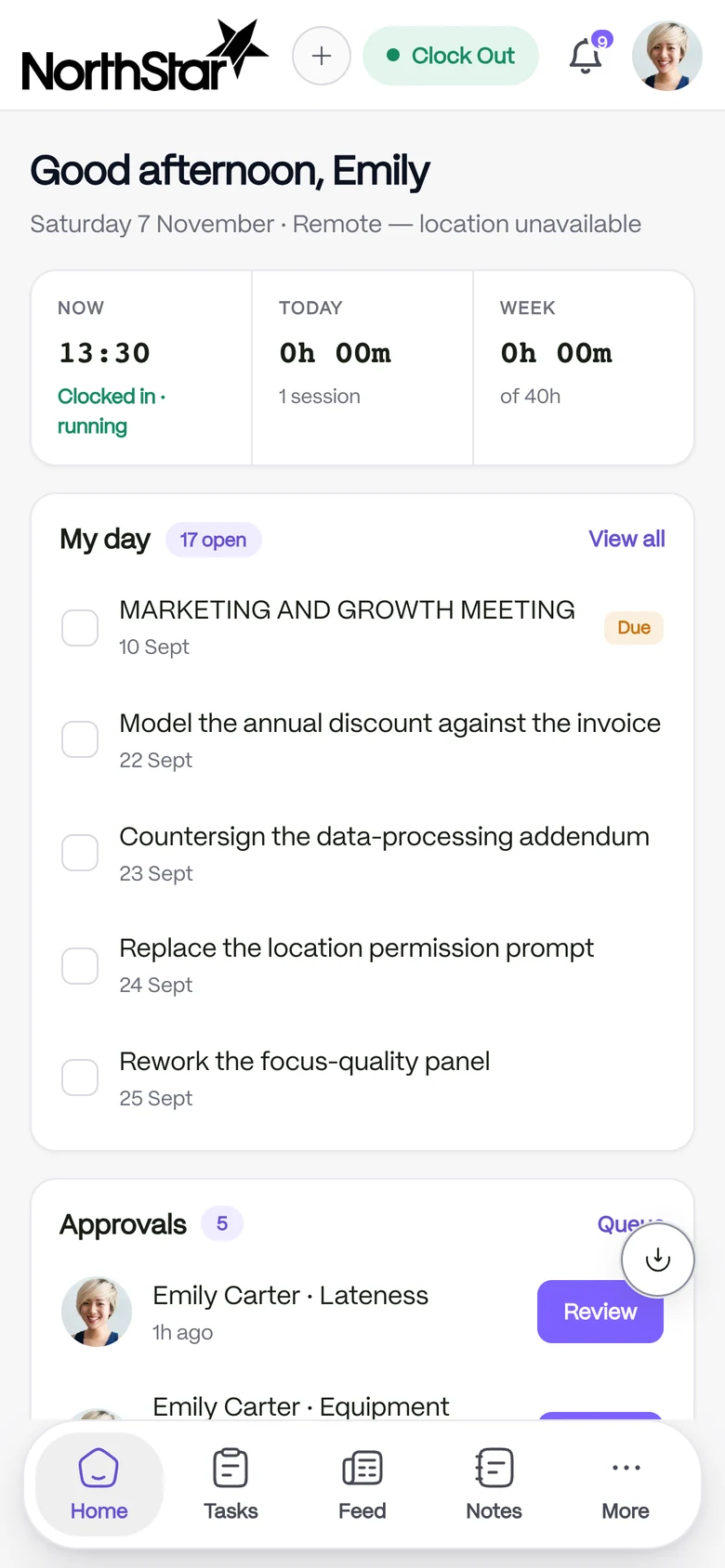
The clock-in screen on a phone

A week built from what really happened

Generate a week for one person, or for a whole list of staff across a date range. Each week totals regular hours, overtime and breaks.

  • Four states: Draft, Submitted, Approved and Rejected
  • A submitted or approved week is locked
  • Edits after submission show who made them and when
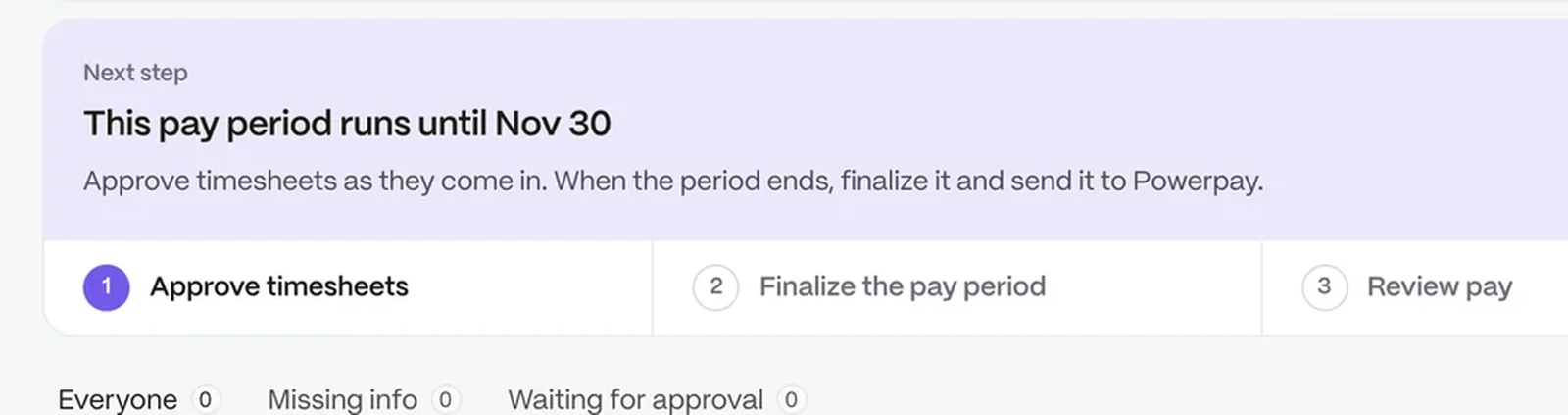
A pay period part-way through: approve timesheets, finalise the period, review pay and export it

Look at the three odd days, not the whole month

Entries carry flags such as Late, Early Leave, No Break, OT, Off-Shift, Long Shift and No Clock-Out. Exceptions wait for a decision.

  • Each exception is Pending, Approved or Rejected
  • Exceptions StaffIntra spots are marked Auto
  • A corrected time keeps the original clocked time beside it
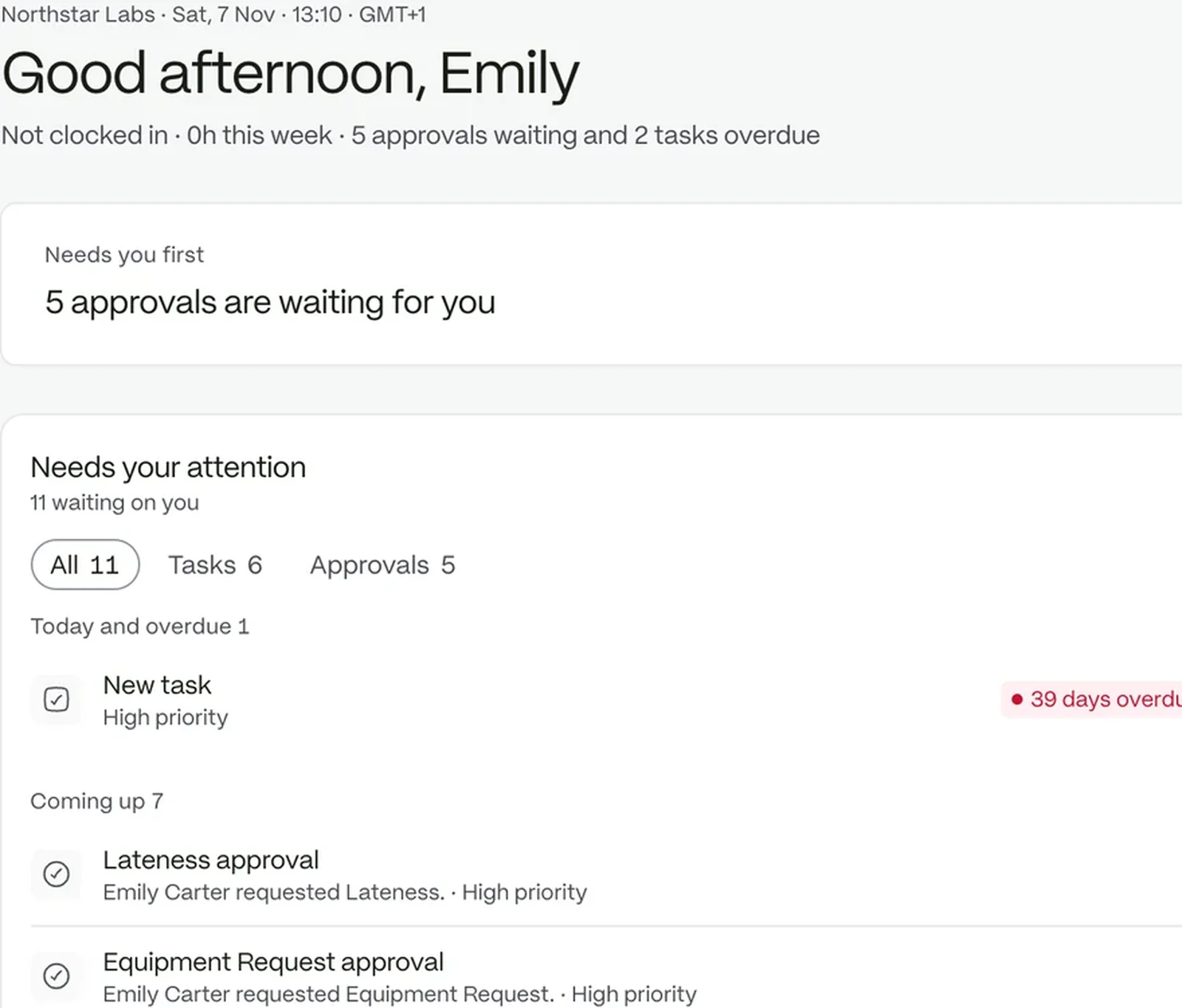
The workspace home: what needs attention, today’s schedule and open tasks

Hours with the work written beside them

Put hours against a task and note what came out of them. The day adds itself up, and tasks sit on a board in the same workspace.

  • Task board with To do, In motion and Done
  • Daily total at a glance
  • Tasks and hours in one place
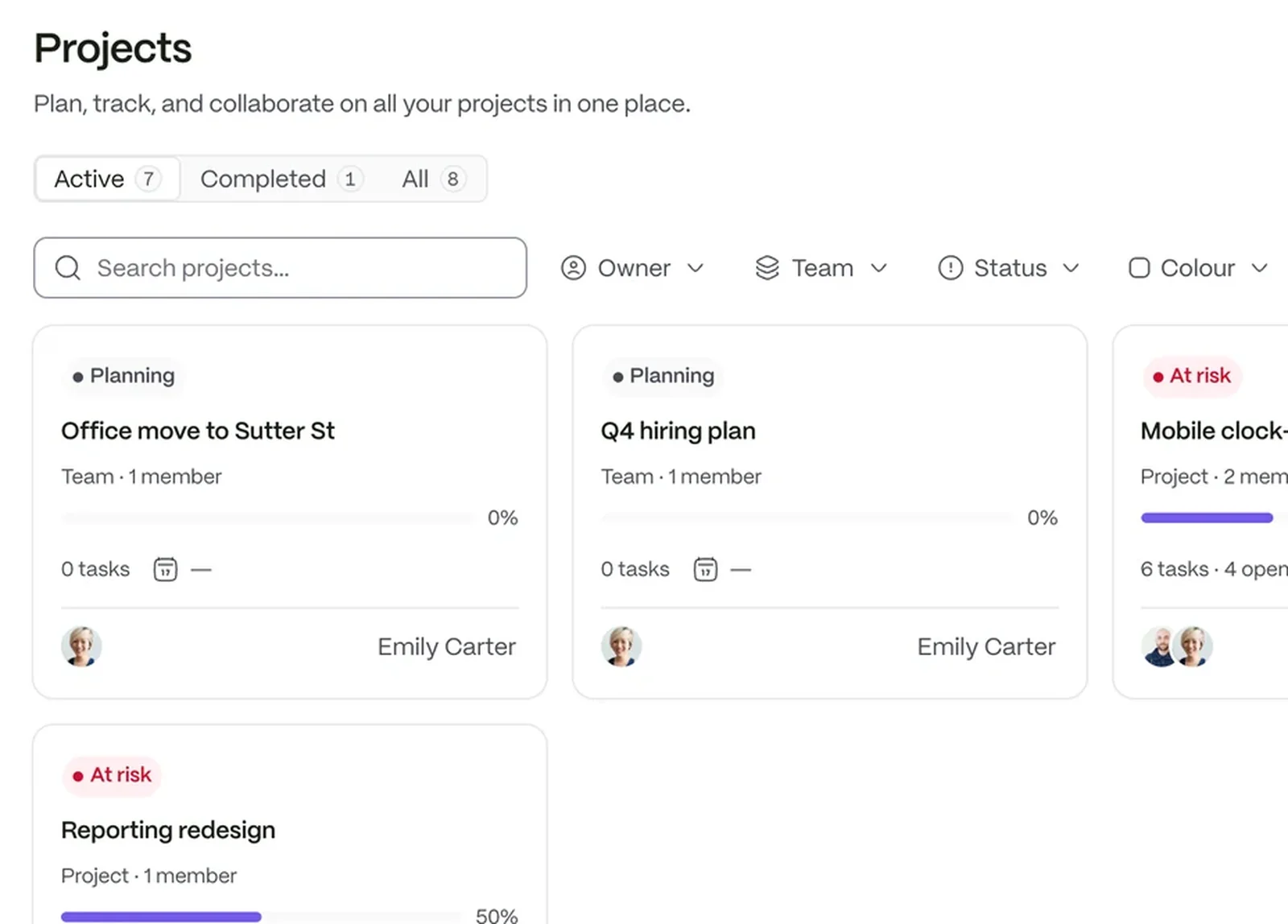
The projects board: each project with its tasks, how far along it is and who owns it

Ask what needs you today

Your company AI lists your open tasks and what to focus on, from your own workspace.

Questions people ask

Can a manager correct a clock time?

Yes. The entry is marked Adjusted and keeps the original clocked time beside the new one.

Where do the hours go next?

Approved hours feed payroll preparation, so nobody enters them twice.

What do you do with clock-in terminals?

Terminals from the supported makers report their punches into attendance, next to clock-ins from phones and browsers.

The workspace your people will love to use.

Try it with your own team. Your own company AI comes with every plan.