Every plan comes with your own company AI, from day one. See what it does

Approve, plan and talk in one place

Your queue shows only what needs you. Your team’s hours and messages are a click away.

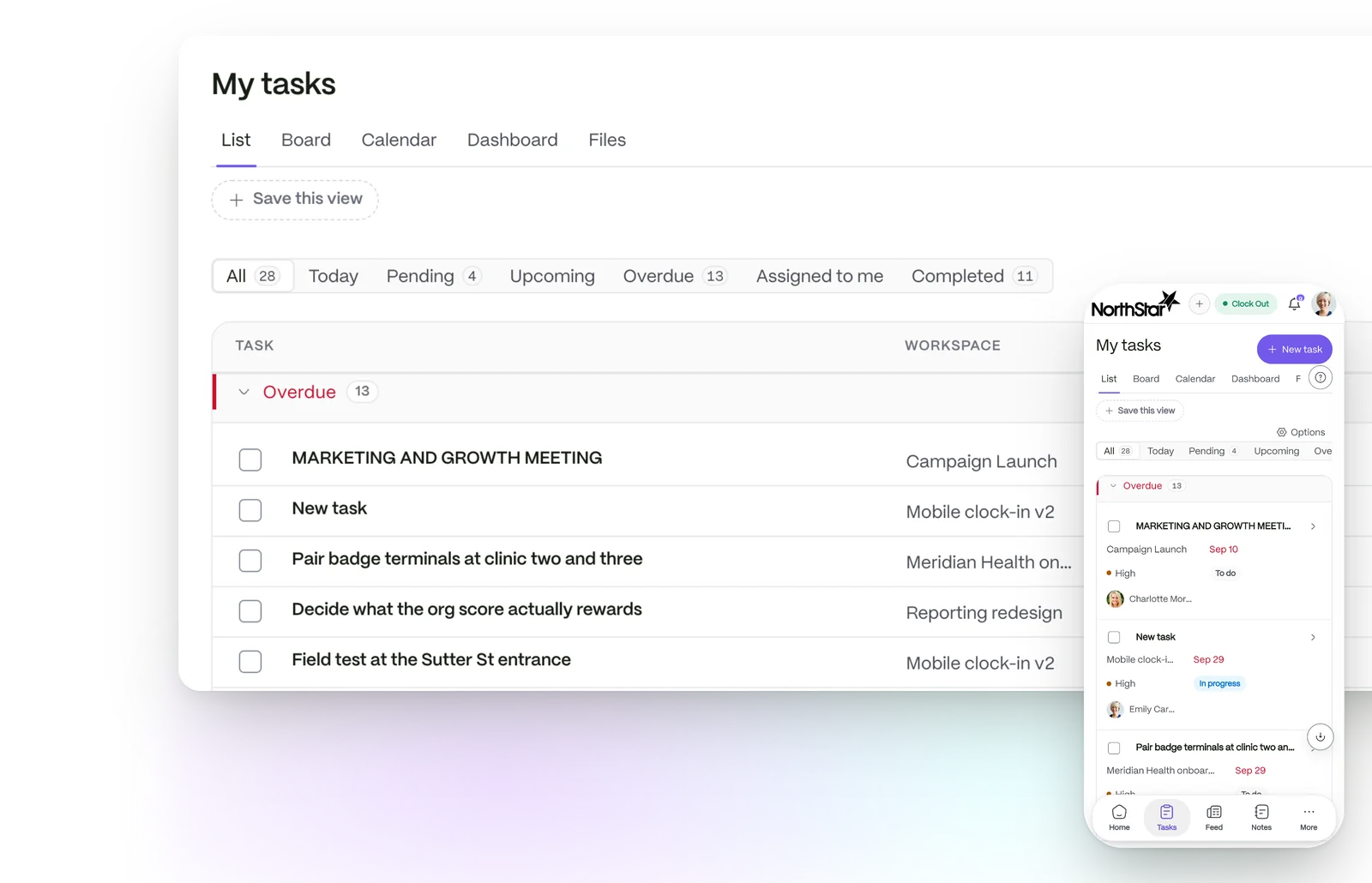
A task list showing each task, its workspace, due date, priority and who it is assigned to, and the same list on a phone

A simple routine

  1. 01

    Open your queue

    The Action needed chip appears only where the current step is yours.

  2. 02

    Decide and note

    Approve or decline, and add a note to the decision when it helps.

  3. 03

    Tell your team

    Message a group or post an update to the people you lead.

A to-do list, not a noticeboard

You see what needs you, and only that. Requests wait with the person whose step it is, and Team Lead is the first approver on most request types.

  • Comments live on the request
  • Pending requests can be withdrawn by the person who raised them
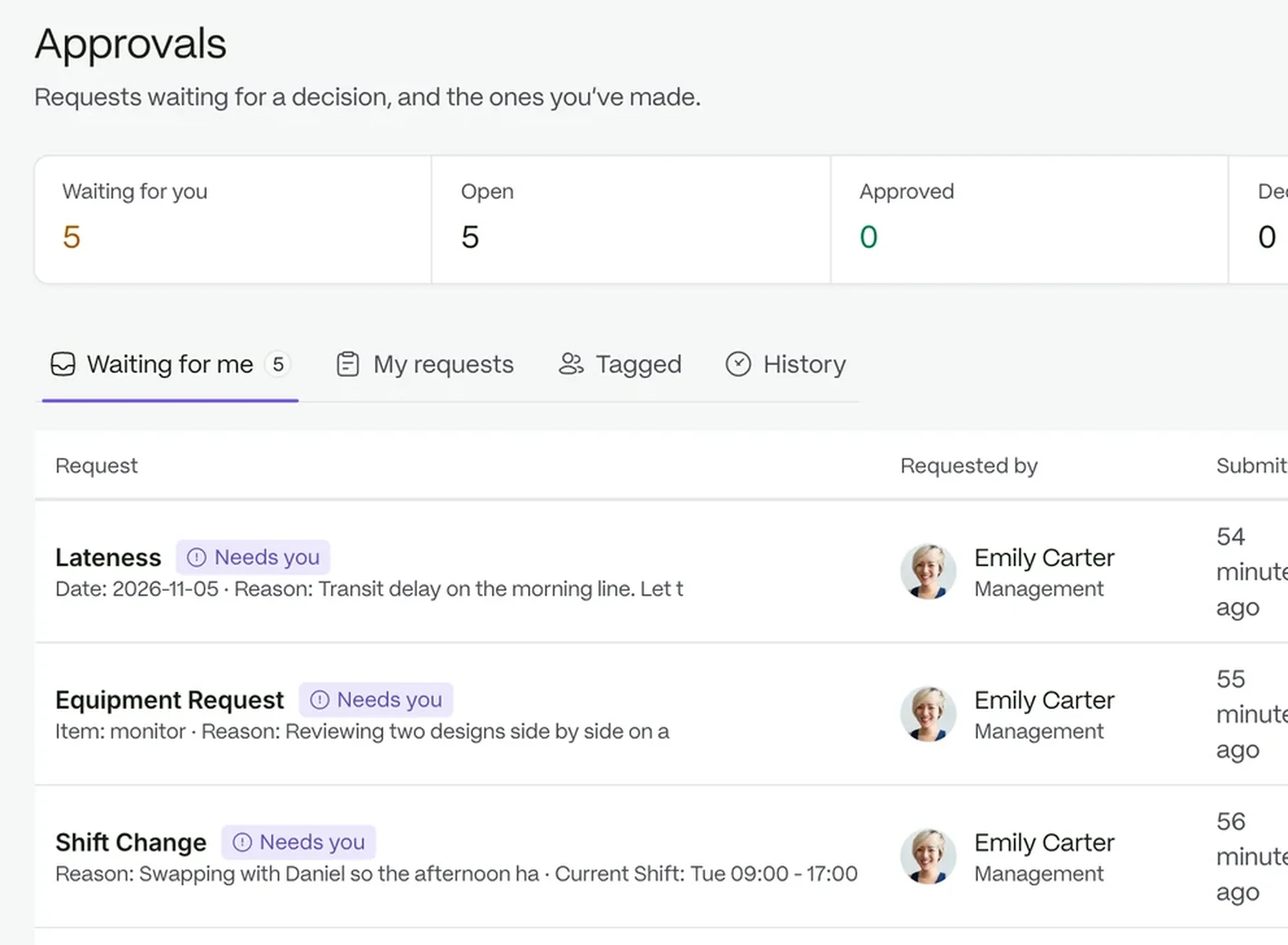
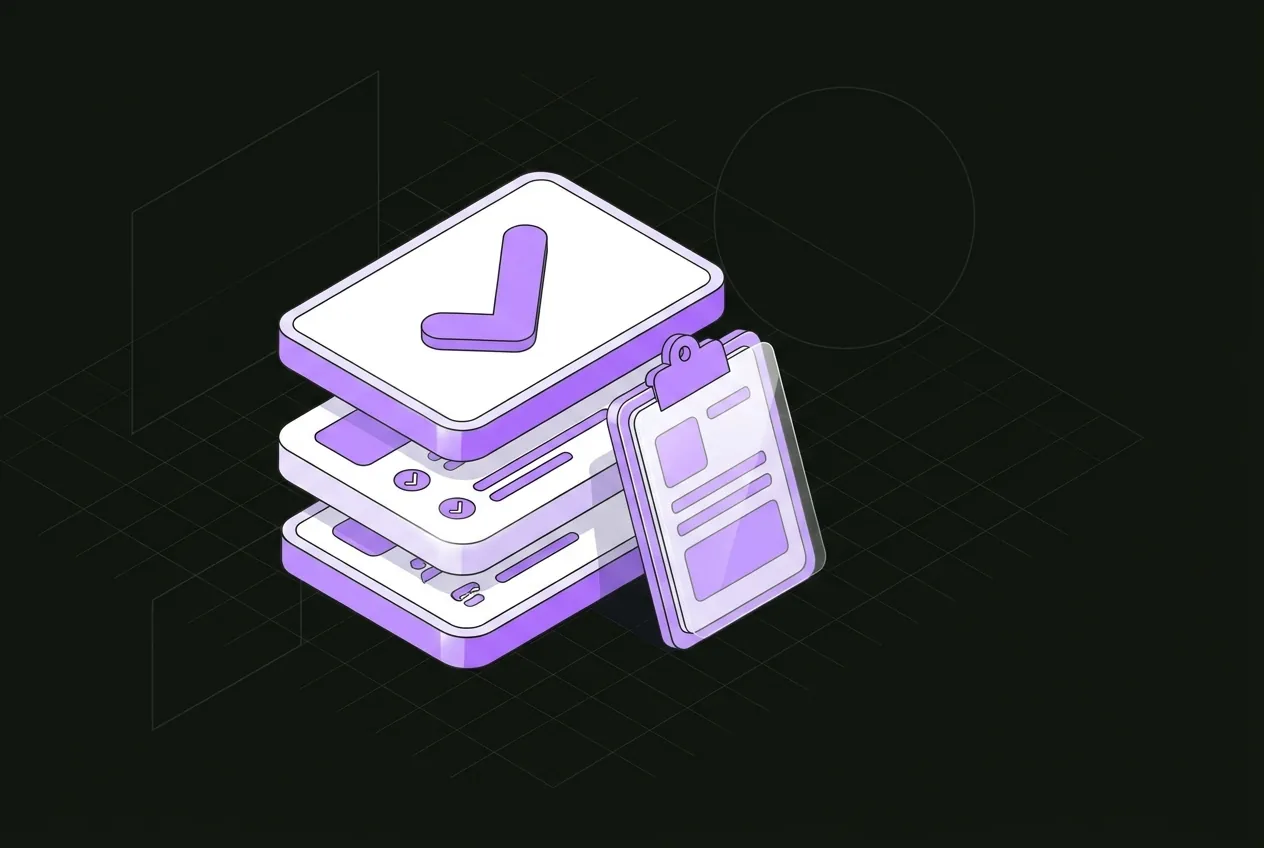
The approvals queue with requests waiting for a decision

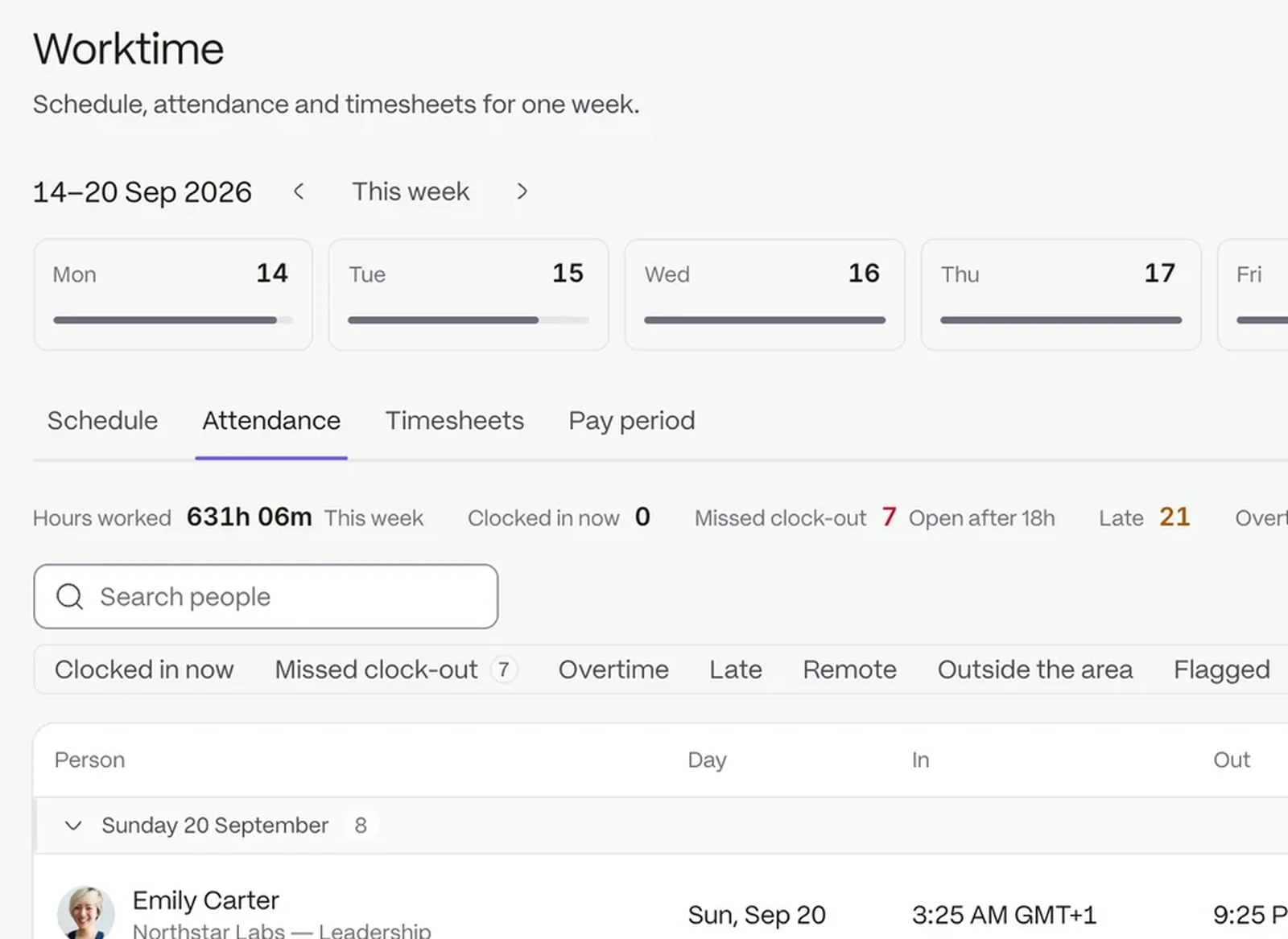
Check timesheets before you sign off

Know what you are signing before you sign it. Each week shows regular, overtime and break totals, and adjusted entries keep the original time beside the new one.

  • Exceptions wait for a decision
  • Hours come from clock events already recorded
Attendance records for a team

Group chat and announcements

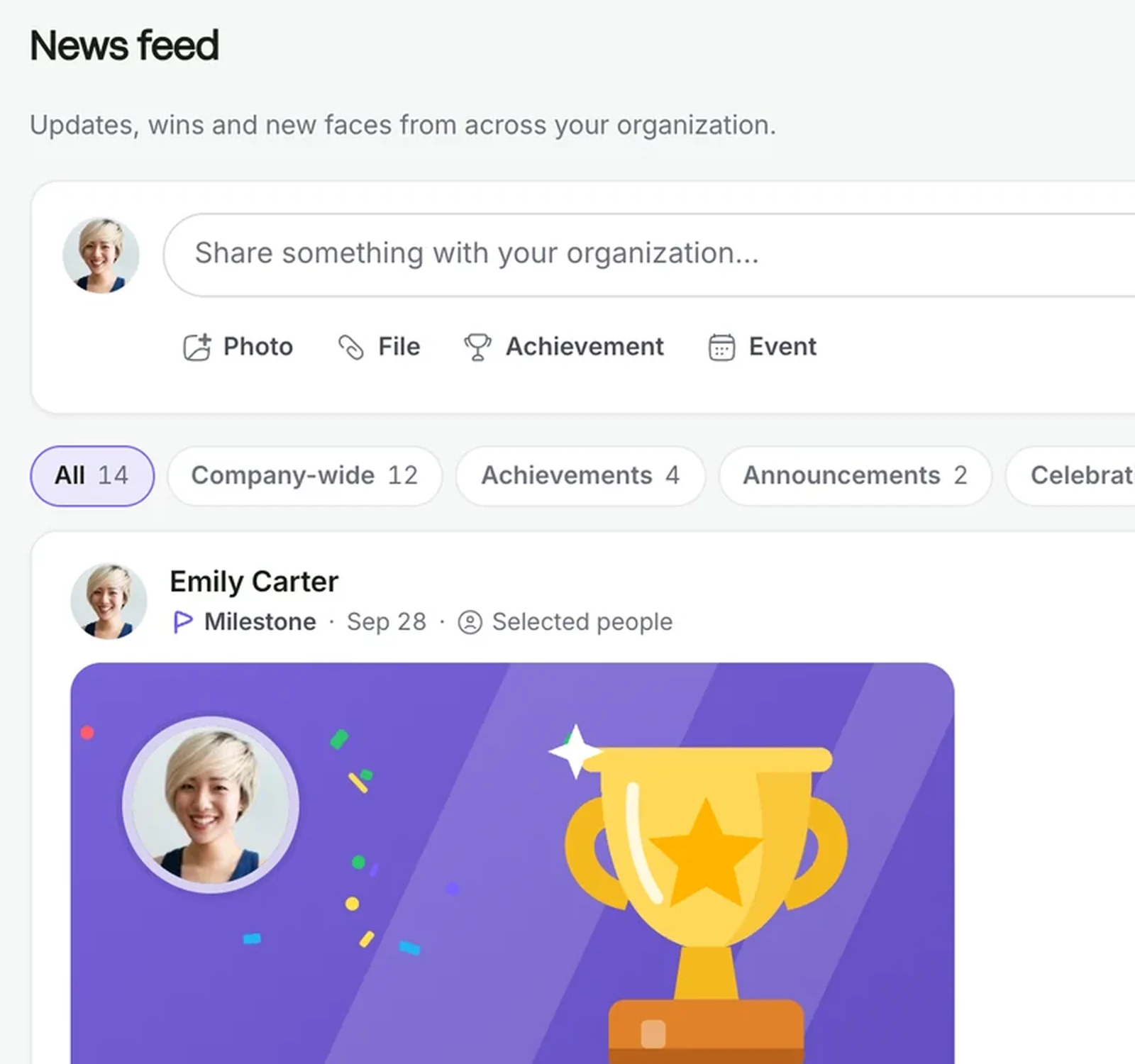
Chat with your team, or post an announcement to the groups and people you choose.

  • New task, Request approval and Share shift from the composer’s plus menu
  • Priority chips from Low to Urgent
An announcement being written with audience and priority choices

Lead without the admin

  • See your teamFind your people in the directory and org chart.
  • Keep tasks visibleYour tasks and approvals sit together on the dashboard.
  • Ask your company AILook up a policy from your own documents.

You see your team, not everyone

Permissions are scoped to your team or department, so you only see what your role allows.

Questions people ask

Will I get requests that are not mine?

No. Action needed appears only where the current step resolves to you.

Can I change a time someone clocked?

A manager can adjust it. The entry is marked Adjusted and keeps the original beside the new one.

Does it work on a phone?

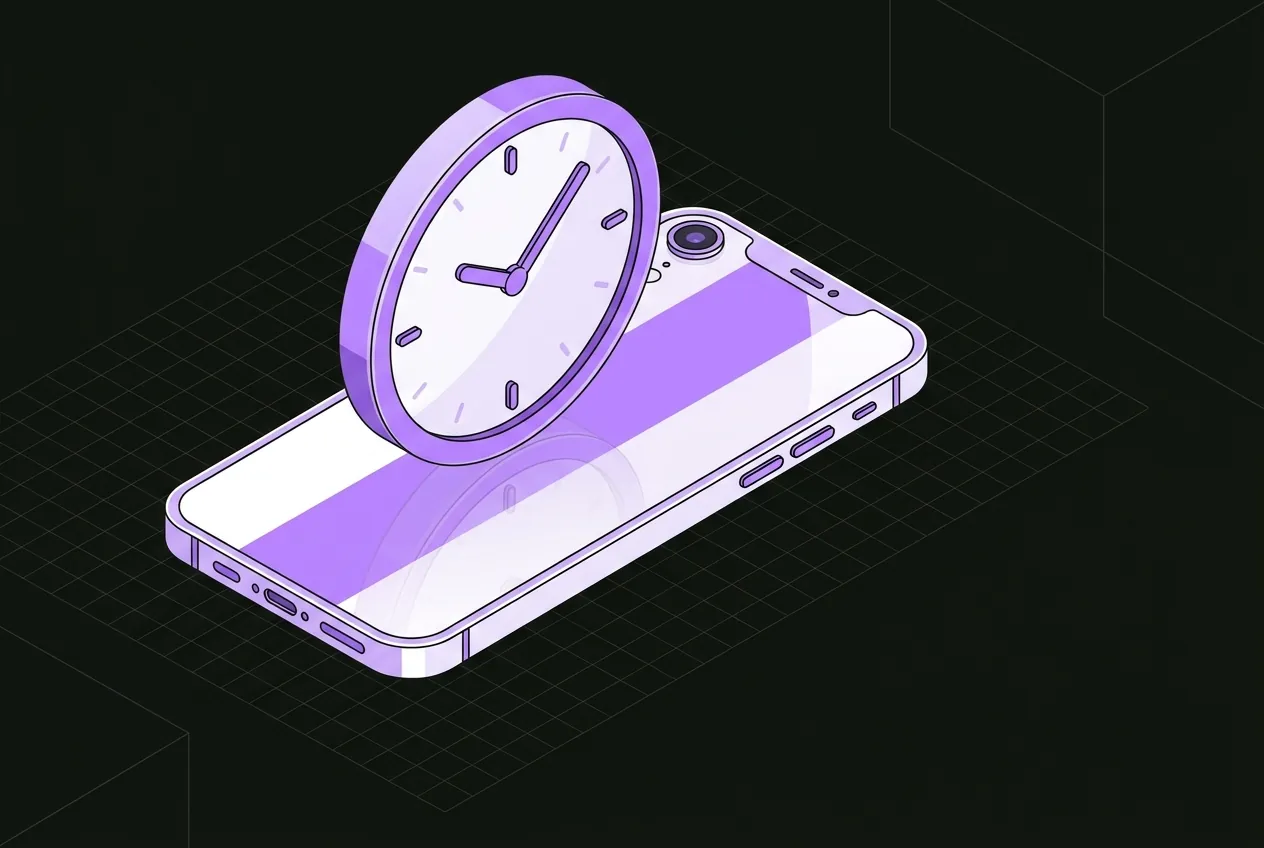
Clock-ins have a phone screen, so your team can clock in from where they are.

The workspace your people will love to use.

Try it with your own team. Your own company AI comes with every plan.